Storyboard review: approve before render
Turn on review so editors send you the storyboard before they render. Approve it or request changes with a note.
Turn review on
Review is off by default: editors render when they’re ready. To check every storyboard first, open the project, the Settings tab, and turn on Require approval before render.

Review is about credits: a render costs credits, a check doesn’t. Catch a wrong photo or map before anything renders. It applies to editors’ videos only. The owner’s own videos render as usual.
Editor: send for review
When the storyboard is ready, press Send for review in the top right, where Render video usually is. The owner gets an email and a notification. The storyboard shows In review until they answer.
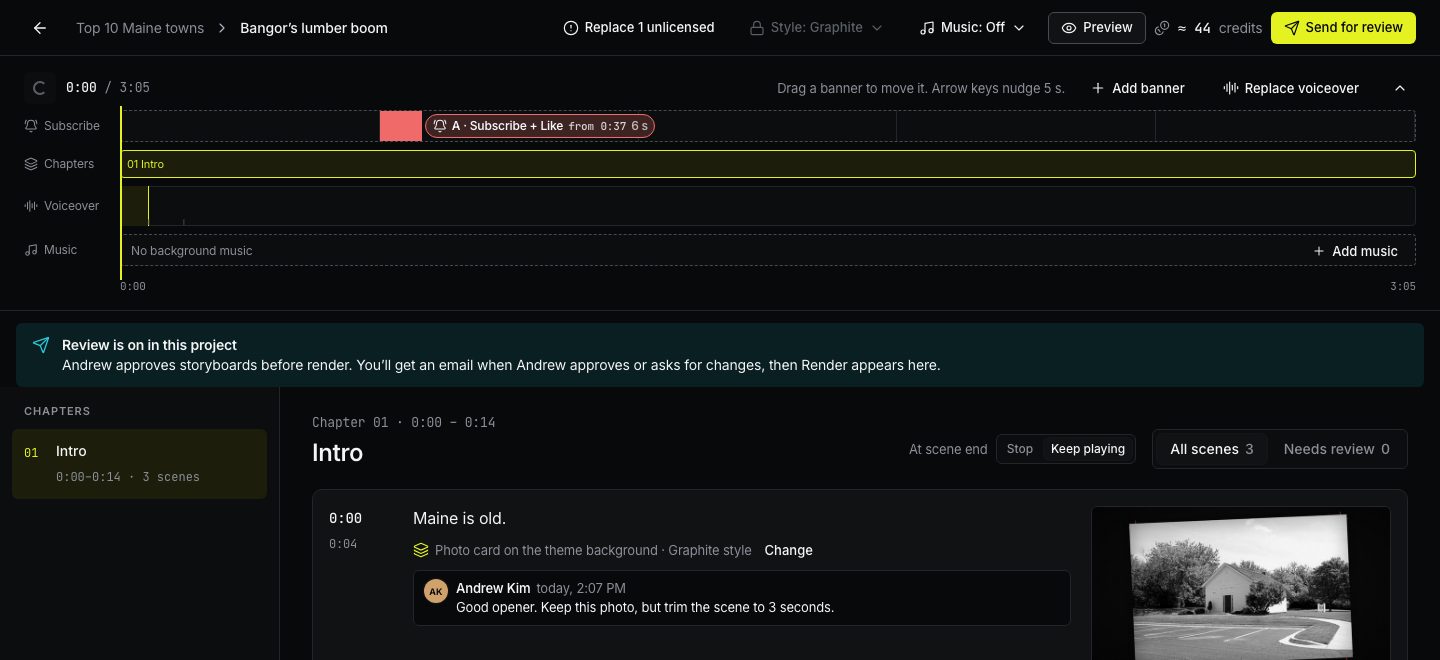
You can keep looking at the storyboard while it’s in review.
Owner: approve or request changes
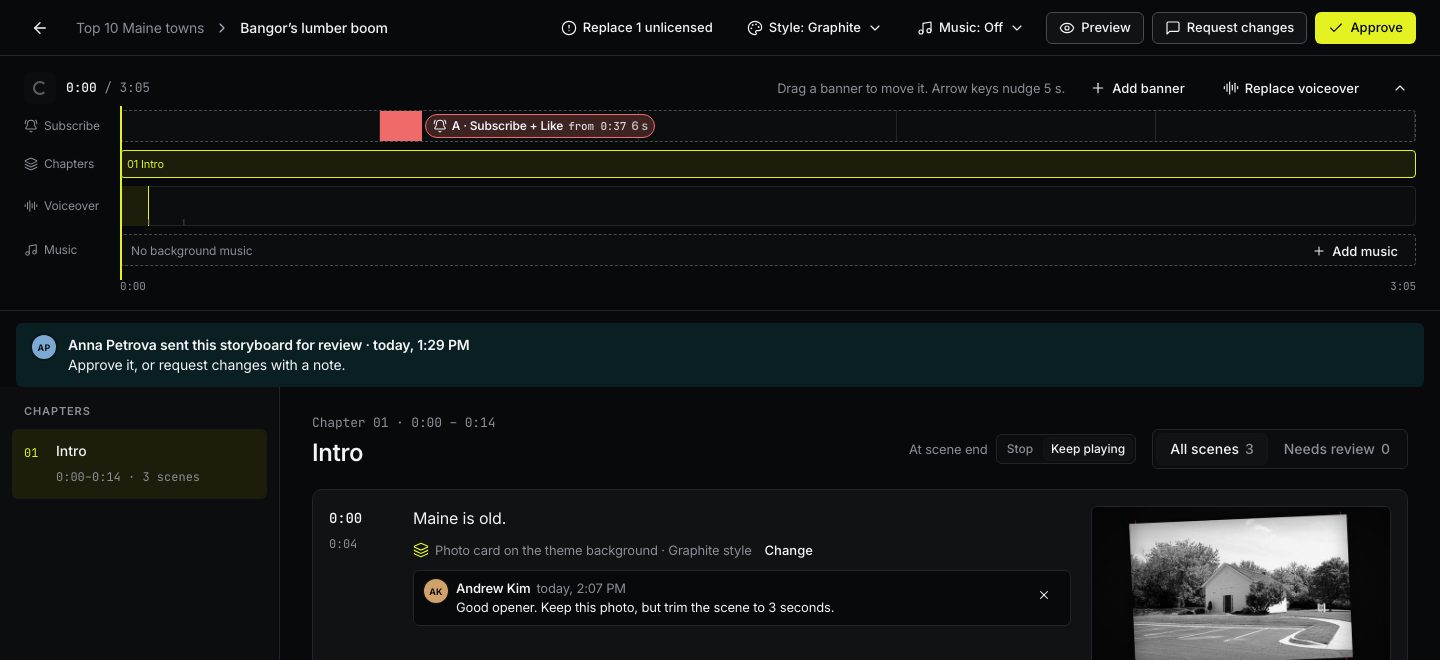
Open the storyboard from the email, from the notification bell, or from to review at the top of Projects. The banner says who sent it.
- Add note under a scene leaves a note on that scene. Everyone on the team sees it.
- Approve: the editor gets an email and can render.
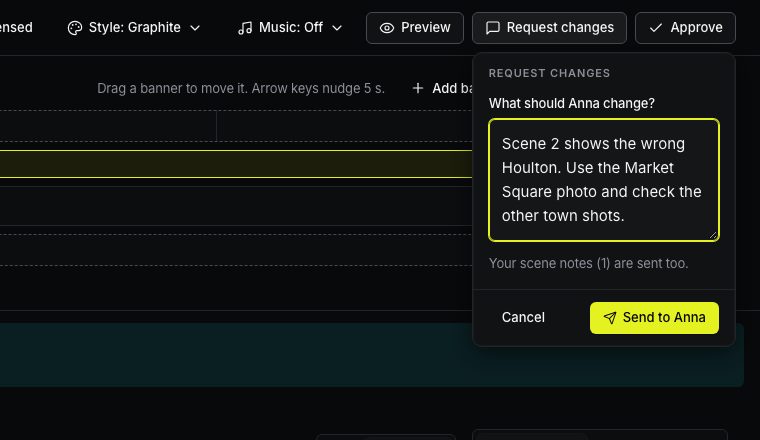
- Request changes: write what to change and send it. Your scene notes go along with it.
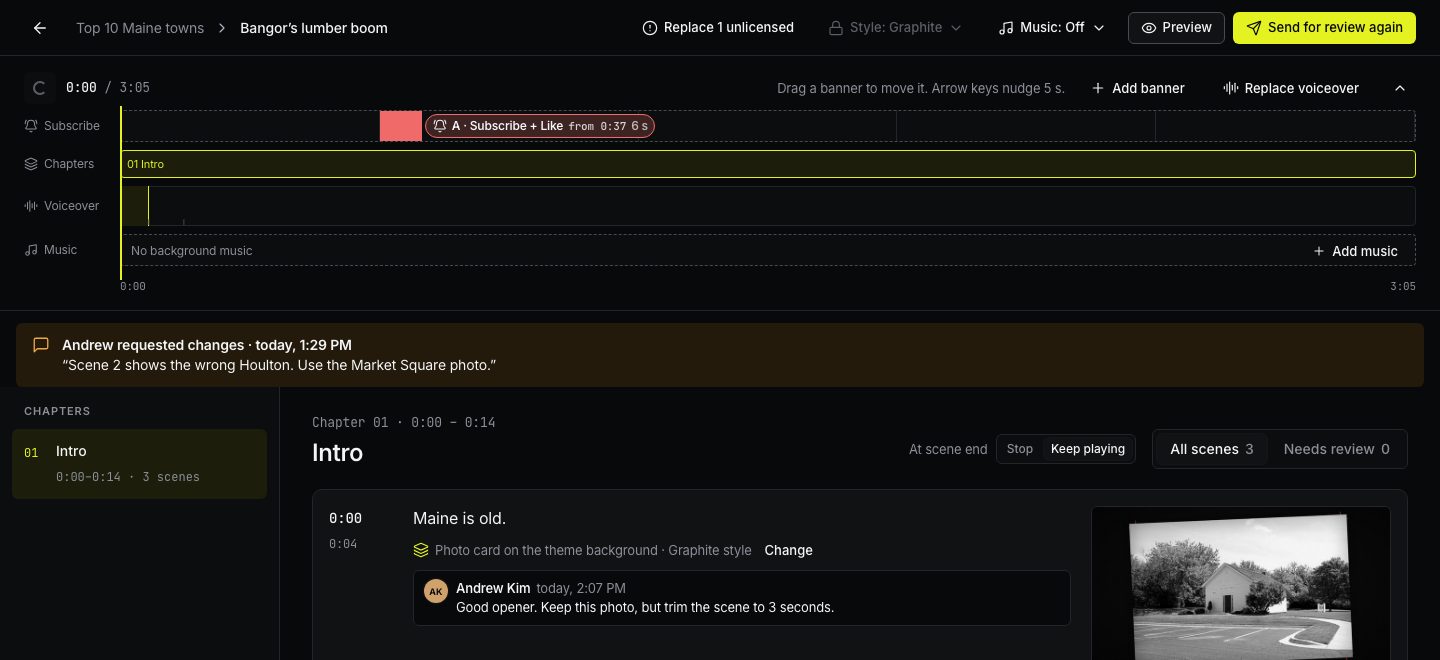
Editor: after the answer
Changes requested. The owner’s note is shown above the scenes, and scene notes sit under their scenes. Fix them and press Send for review again.
Approved. Render video appears. The render uses the owner’s credits.
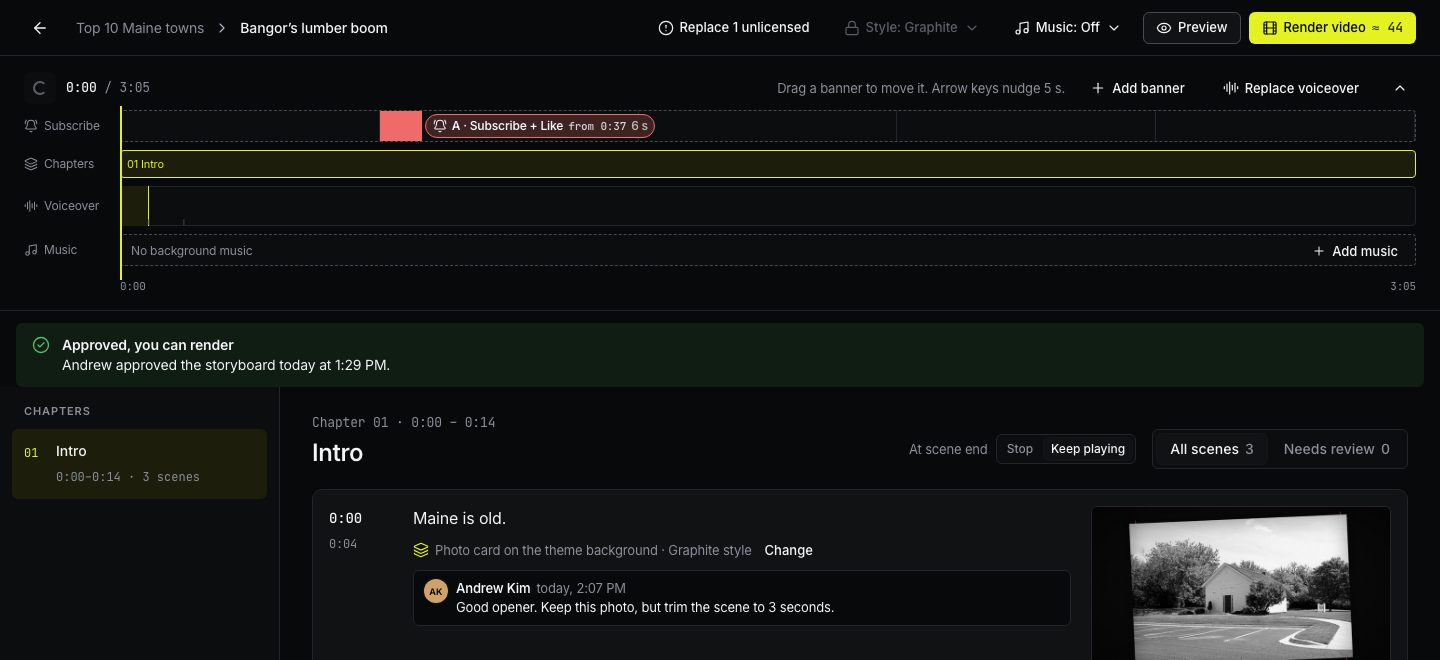
Viewers can read the storyboard and add notes, but they don’t approve or render.
Write to us — a person reads every message and replies by email.