Timeline: banners, voiceover and music
Move and add subscribe banners, find long pauses in the voiceover, and pick or change the background music.
The timeline runs across the top of the storyboard, under the top bar. All its lanes share one playhead.
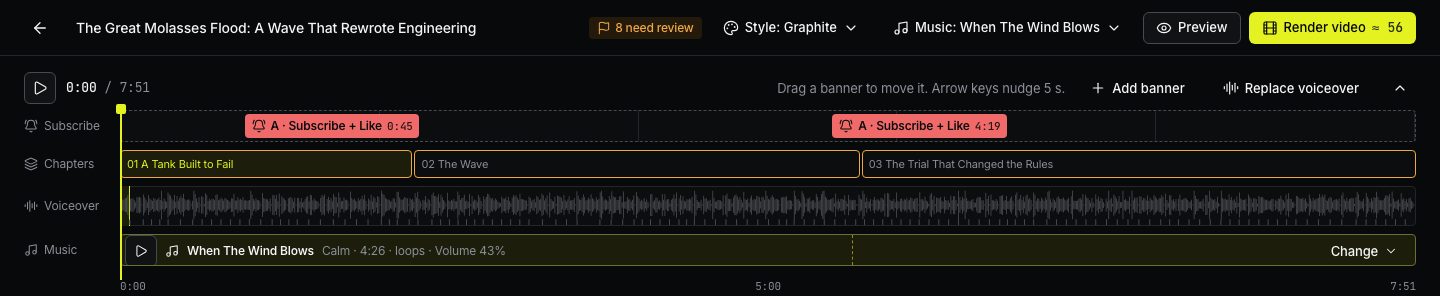
Subscribe banners
- Move a banner by dragging it. Select one and use the arrow keys to nudge it by 5 seconds.
- Switch the look by double-clicking the banner: A → B → C → D.
- Add one with Add banner, up to 10 per video.
- Remove one with the × on the banner.
A banner needs a few seconds before the end of the video to play in full. The name and avatar come from the channel chosen for the video. See Projects and channels.
Chapters
The chapter lane shows every chapter. Click one to jump to it. Chapters that need review are highlighted.
Voiceover
The waveform of the narration. Click it to play from that moment. Pauses longer than 2 seconds are marked with their length. Long pauses become long scenes; you can trim them in your recording and use Replace voiceover.
Music
When music is on, the lane shows the track, its mood, length and volume. Dashed lines mark where the track starts again.
- ▶ plays the track alone. Playing the storyboard plays it under the voice.
- Click the track, or the Music button in the top bar, to change it. Tracks are grouped by mood: Calm, Hopeful, Uplifting, Mysterious, Tense, Somber. The mood that fits your story is marked.
- Volume sets how loud the music is under the voice.
- No music? Press Add music.
The music is by Kevin MacLeod under CC BY. The credit is added to Copy credits on the video page automatically. Music is free.
Write to us — a person reads every message and replies by email.