Change how a scene looks
Switch a scene between a full-screen photo, a photo card, a big number or a story graphic, and merge or split scenes.
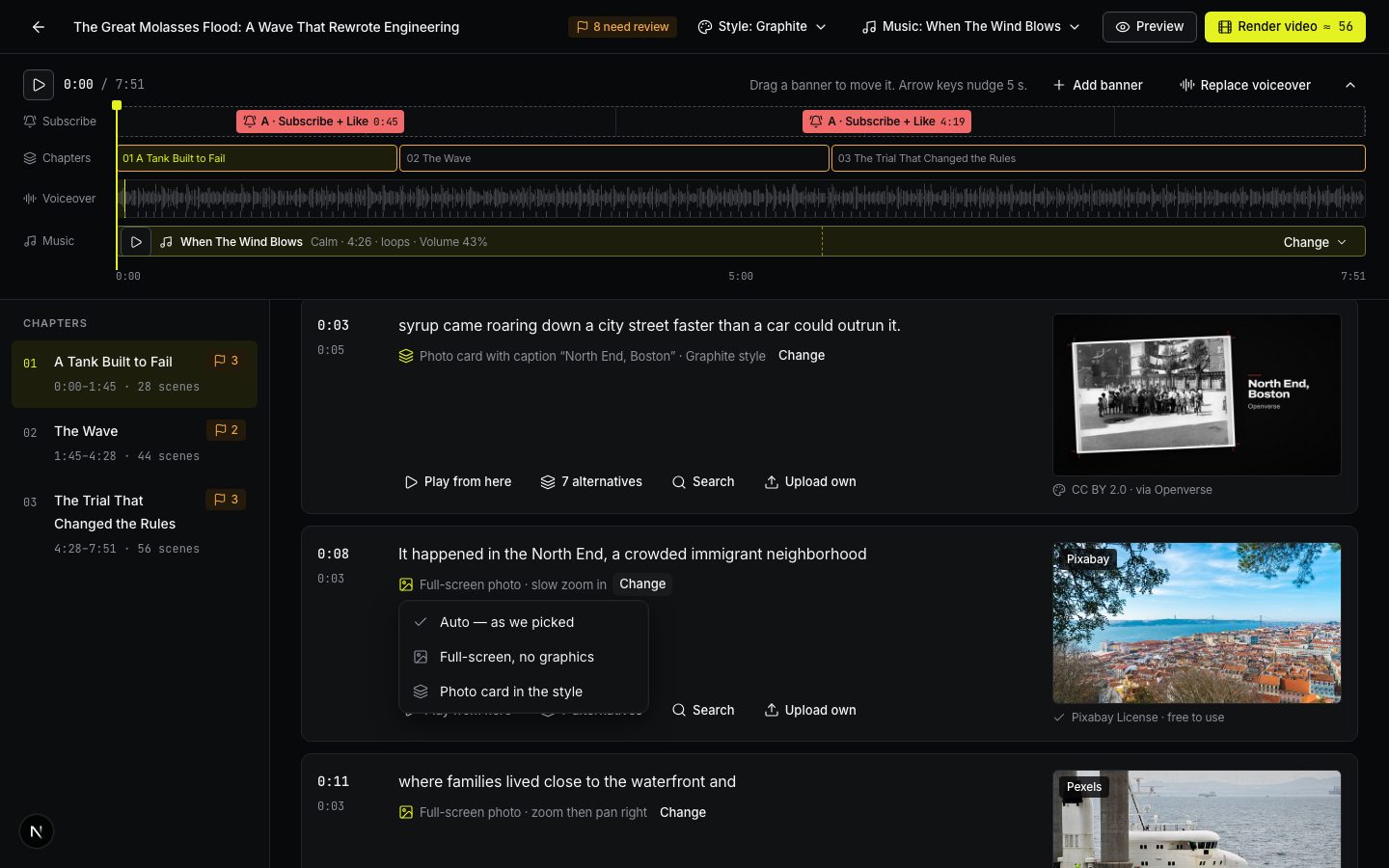
Under the narration of every scene there is a line that says how it will be shown, for example *Full-screen photo* or *Photo card in the Graphite style*. Next to it is Change.
Choose a look
Press Change and pick one of the looks that fit this scene. Only looks that make sense for the scene are offered.
- Auto — as we picked: back to ViCut’s choice.
- Full-screen, no graphics: just the photo or clip, with slow camera motion.
- Full-screen with number plate: the photo with a label for a number spoken in this scene.
- Photo card in the style: the photo framed on the theme background, with a caption.
- Big number over the frame: a number from the narration, large, over the photo.
- Part number over a landscape: the chapter number of a countdown.
- Story graphic: an animated chart, quote card, key phrase, year card, timeline and more. Story graphics come with Premium themes.
Numbers on screen always come from the narration: a number that isn’t spoken is never shown.
Merge or split a scene
After Replace voiceover some scenes can end up too short or too long. They are marked Needs review · very short or very long:
- Merge with next joins a too-short scene with the next one.
- Split scene cuts a long scene in two, so it gets a second frame.
- Keep as is clears the mark.
Change the whole style
The look of all scenes (colors, fonts, photo frames) comes from the style. Change it for this video with the Style button in the top bar. Frames stay, only the look changes. See Themes and your own styles.
Write to us — a person reads every message and replies by email.