Thumbnails and YouTube details
Make and pick a thumbnail, preview it in a YouTube feed, write the title, description with chapters and tags, and copy the footage credits.
Everything on this page is on the finished video page, below the player.
Thumbnails
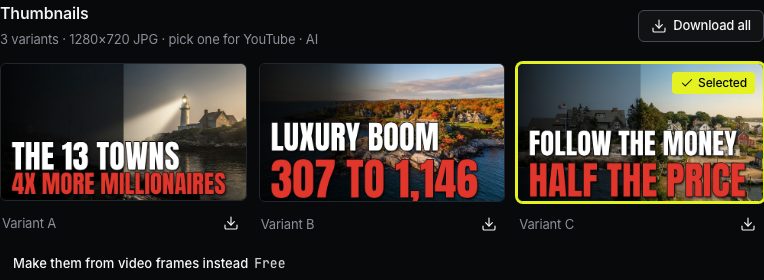
ViCut makes three 1280×720 thumbnails from the best real photos in your video, with a bold headline taken from your script. Free.
If you chose thumbnails in the composer, they are made right after the render. Making them takes about a minute.
- Click a variant to select it. The selected one is used in the YouTube preview below.
- Download one with the icon on its card, or all three with Download all.
- Want other options? Press New variants.
How it looks on YouTube
A mock of the YouTube home feed and search results with your thumbnail, title and channel, in Dark or Light. It is approximate: YouTube may crop a little differently.
YouTube details
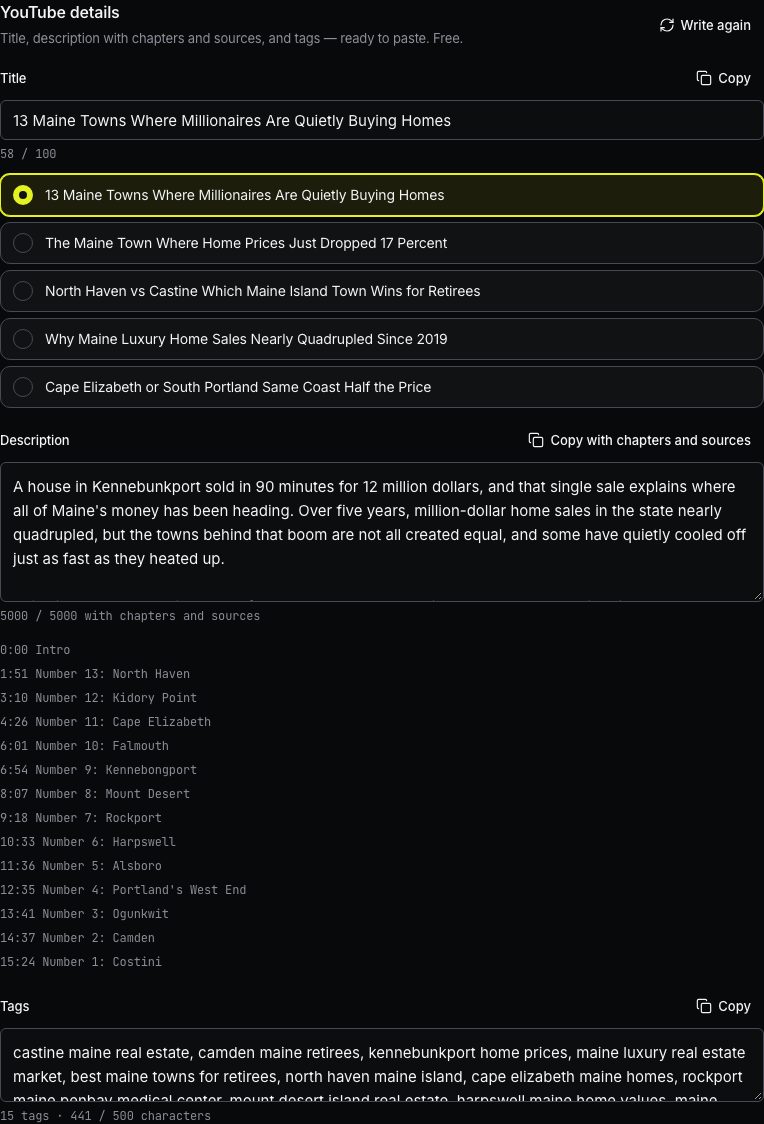
Press Write title and description. In about 10 seconds you get, for free:
- Title: five suggestions. Pick one or edit it; the counter shows YouTube’s 100-character limit.
- Description: a summary of the video. Copy with chapters and sources copies it together with chapter timestamps and the sources of the facts.
- Tags: ready to paste, with a character counter.
Edits are saved when you click away. Press Copy next to a field to copy it. Write again makes new suggestions.
Footage credits
Some photos and maps are free to use only with a credit to the author. Footage sources shows the libraries used in the video. Click a library’s logo to see the authors of its shots in your video; each name links to their page. Press Copy credits and paste the text at the end of your YouTube description. The music credit is included.
If nothing in the video needs a credit, the section says so.
Write to us — a person reads every message and replies by email.