While the storyboard is prepared
The five preparation stages, how long they take, what credits are spent, and what to do if preparation waits or stops.
After you press Generate, the video page shows Preparing your storyboard with a progress bar and the time left.
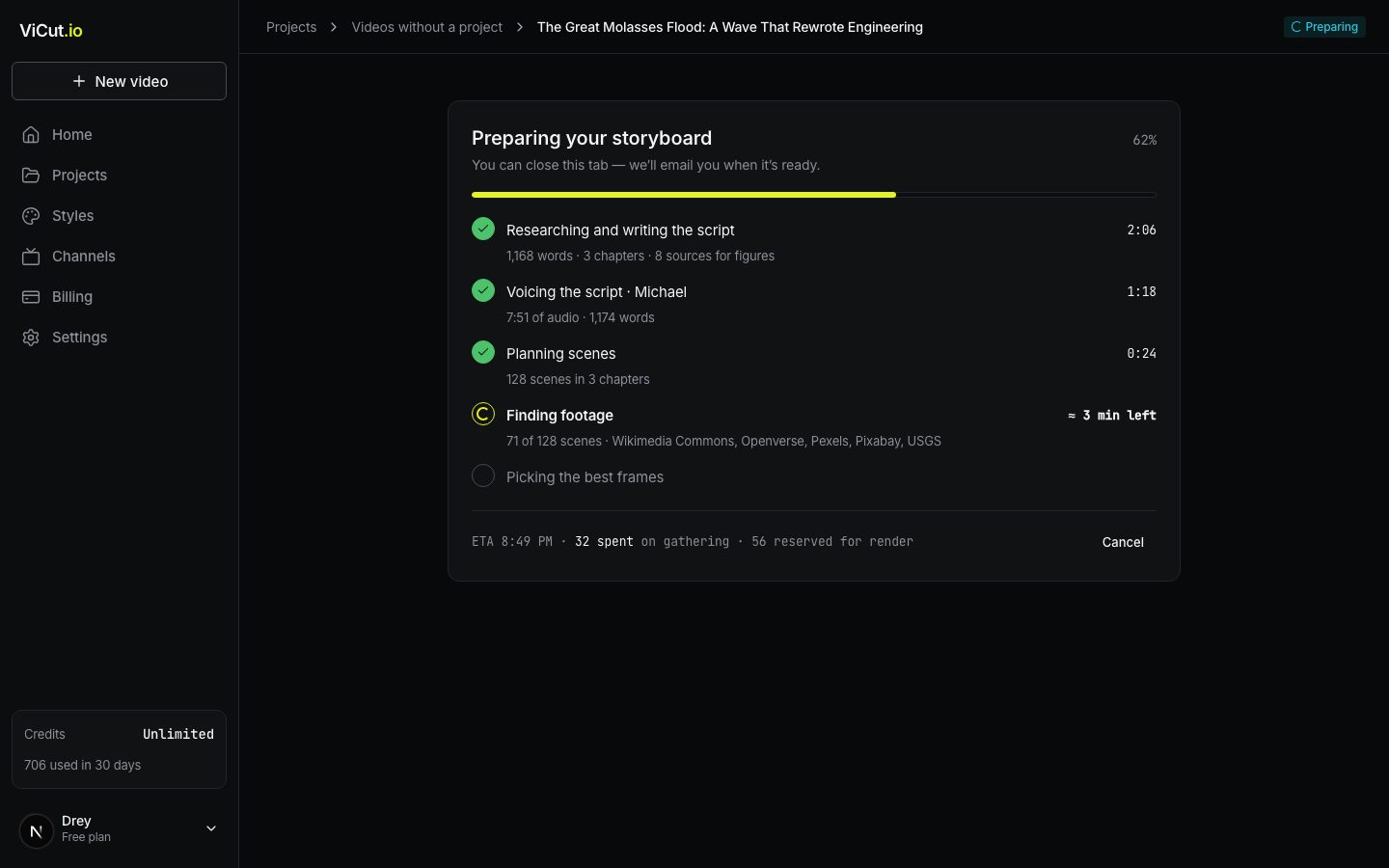
The stages
- Researching and writing the script (Idea mode only). Web research and a script with a source for every figure.
- Timing from the voiceover, or Voicing the script in Idea mode. Every word gets its exact time.
- Planning scenes. The narration is split into chapters and into scenes of a few seconds each.
- Finding footage. Photos, clips, archive pictures and maps for every scene. Pexels comes first; when it has nothing that fits (a named place, a person, the distant past), we look in Wikimedia Commons, Openverse, Pixabay and USGS maps. Lines where you ask viewers to subscribe or comment get no new frame: the previous shot stays on screen until you finish.
- Picking the best frames. The best frame for each scene is chosen and checked against the narration. Frames we are not sure about are marked for your review.
A 10-minute video usually takes 7–10 minutes; add about 3 minutes in Idea mode. You can close the tab: the video keeps going on our servers and shows in In progress in the sidebar.
Credits during preparation
The footer shows how many credits are spent on gathering footage so far and how many are reserved for the render. Gathering is charged as it goes (4 credits a minute). The render part is only held, and charged when the render finishes.
Waiting for stock
Rarely you may see Waiting for stock provider, resumes at …: a stock library has paused our searches for a while. Preparation continues by itself at that time; nothing is lost and no extra credits are used. Press Continue without Pexels if you don’t want to wait: the remaining scenes use the other sources.
Waiting in the queue
If the screen says Waiting for a free slot, other videos are being prepared right now. Yours starts automatically.
Stopping preparation
Press Cancel, then Stop and keep draft.
- Credits already spent on gathering are not returned.
- Credits reserved for the render are returned.
- The draft is kept. Open it later and press Prepare storyboard to start again.
If preparation stops on its own
You see Preparation stopped with the reason. When it fails on our side, credits are returned. Press Try again or Delete draft. If it keeps failing, write to us with the video title.
When it is ready
The title changes to Your storyboard is ready. If some frames need review, a note says how many. Press Open storyboard.
Write to us — a person reads every message and replies by email.