Help center › Storyboard
Check the storyboard
How the storyboard is laid out, how to play it, and how to find the scenes that need your attention before rendering.
Updated October 19, 2026
The storyboard is where you check the video before it is rendered. It opens full screen.
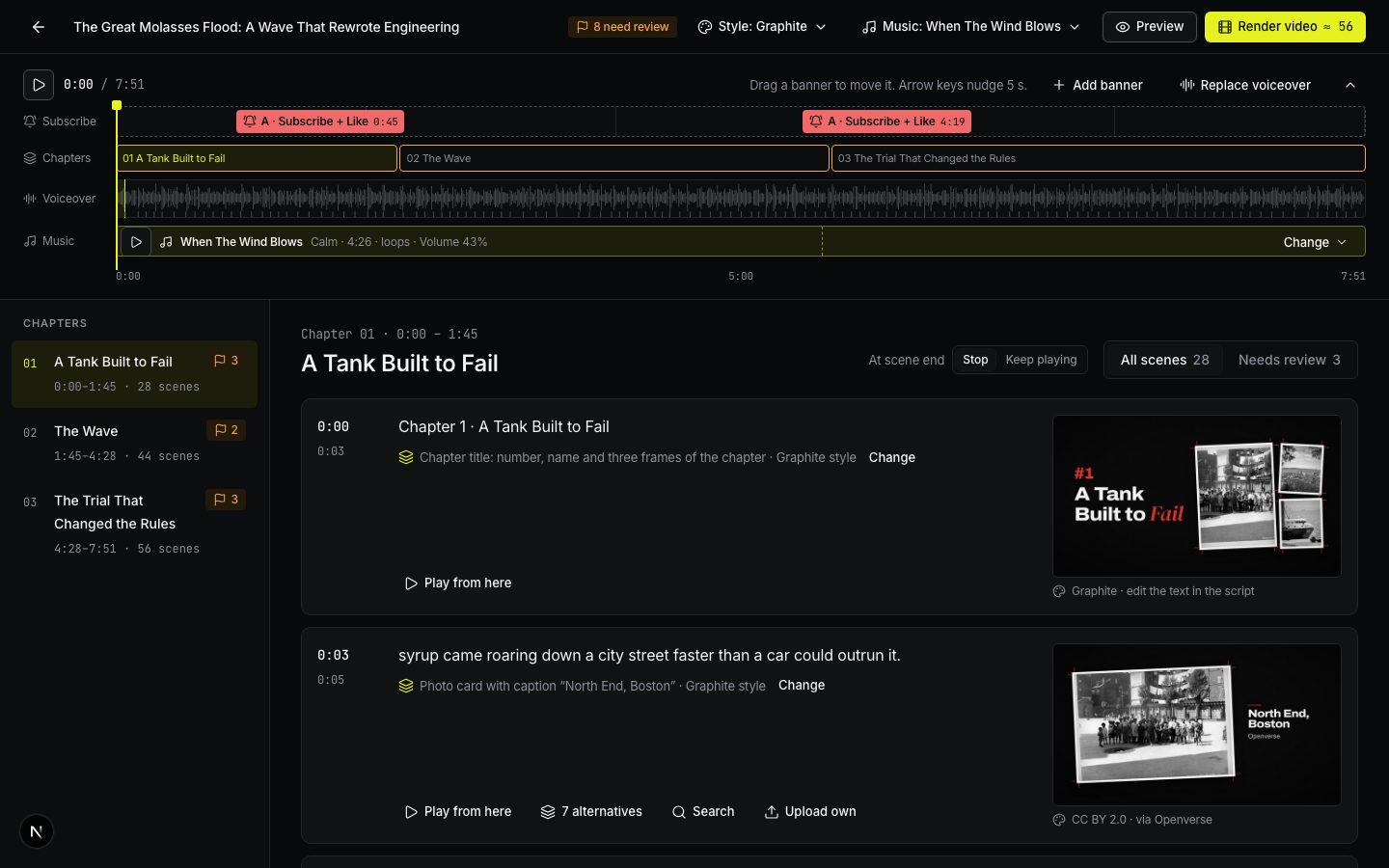
Layout
- Top bar. Style, music, Preview and Render video with the cost.
- Chapters on the left. Each chapter shows its time and number of scenes. A red badge means scenes without footage, an amber badge means scenes to review. Click a chapter to open it.
- Scenes in the middle. Each row has the time, the narration, a line saying how the scene is shown, and the frame.
- Timeline under the top bar: subscribe banners, chapters, the voiceover waveform and music. See Timeline. Hide timeline folds it away.
Playing
- Press the space bar or the play button to play from the current scene. The spoken word is highlighted in the narration.
- ← and → jump to the previous or next scene.
- The play button on a scene plays from there.
- At scene end: Stop / Keep playing decides whether playback stops after one scene or runs on.
- Click anywhere on the voiceover waveform to play from that moment.
The storyboard shows the chosen frames, not the final motion and graphics. Press Preview to see sample frames drawn in your style.
What needs attention
Use the filter above the scenes: All scenes or Needs review (it reads Need attention when a chapter has scenes without footage).
| Mark | What it means | What to do |
|---|---|---|
| No matching footage (red) | No frame was found for the scene. The video can’t be rendered until it has one. | Search with broader words, or Upload own. |
| We weren’t sure this frame matches the narration (amber) | The frame may show the wrong place, or its license is not confirmed. | Keep this photo if it is right, or Pick another. |
| Same photo as the scene at … | Viewers would see the same frame twice. | Pick another or Search. |
| This part is a recording | The voiceover plays a recording here, not the narrator: an interrogation, a phone call, a news report. The whole part is one scene. | Upload own the clip or a photo of the people in it, or Keep this photo. |
| Needs review · very short / very long | The scene is too short to read or one frame stays too long. | Merge with next, Split scene or Keep as is. |
When several frames repeat, a button Replace N repeats appears in the top bar. It swaps every repeated frame for an unused alternative of its scene; frames you picked yourself stay.
Tip. Amber marks don’t block rendering. You can render now and fix frames later, but a re-render costs credits again. It is cheaper to check first.
Next
Didn’t find the answer?
Contact usWrite to us — a person reads every message and replies by email.