Make your first video
Sign in, add your channel and get from an empty account to a downloaded MP4, step by step.
1. Sign in
Open vicut.io and press Sign in. Enter your email and press Send magic link. We email you a link. Open it on the same device and you are in: there is no password. The same link creates your account if you are new. While we let new creators in gradually, a new account answers four quick questions and then waits for access; we email you when it’s ready, and the email takes you to choose a plan.
- The link works for 15 minutes and only once.
- No email after a minute? Look in Spam or Promotions, then press Resend link. Only the newest link works.
2. Choose a plan
Videos need a plan with credits. Open Billing in the sidebar and press See plans, or Upgrade under the credits meter. See Credits and plans.
3. The welcome steps
The first time you sign in, ViCut asks three quick questions. You can press Skip setup and do all of this later.
- Welcome. Your name and how long your videos usually are. This only sets the default length; you can change it for every video.
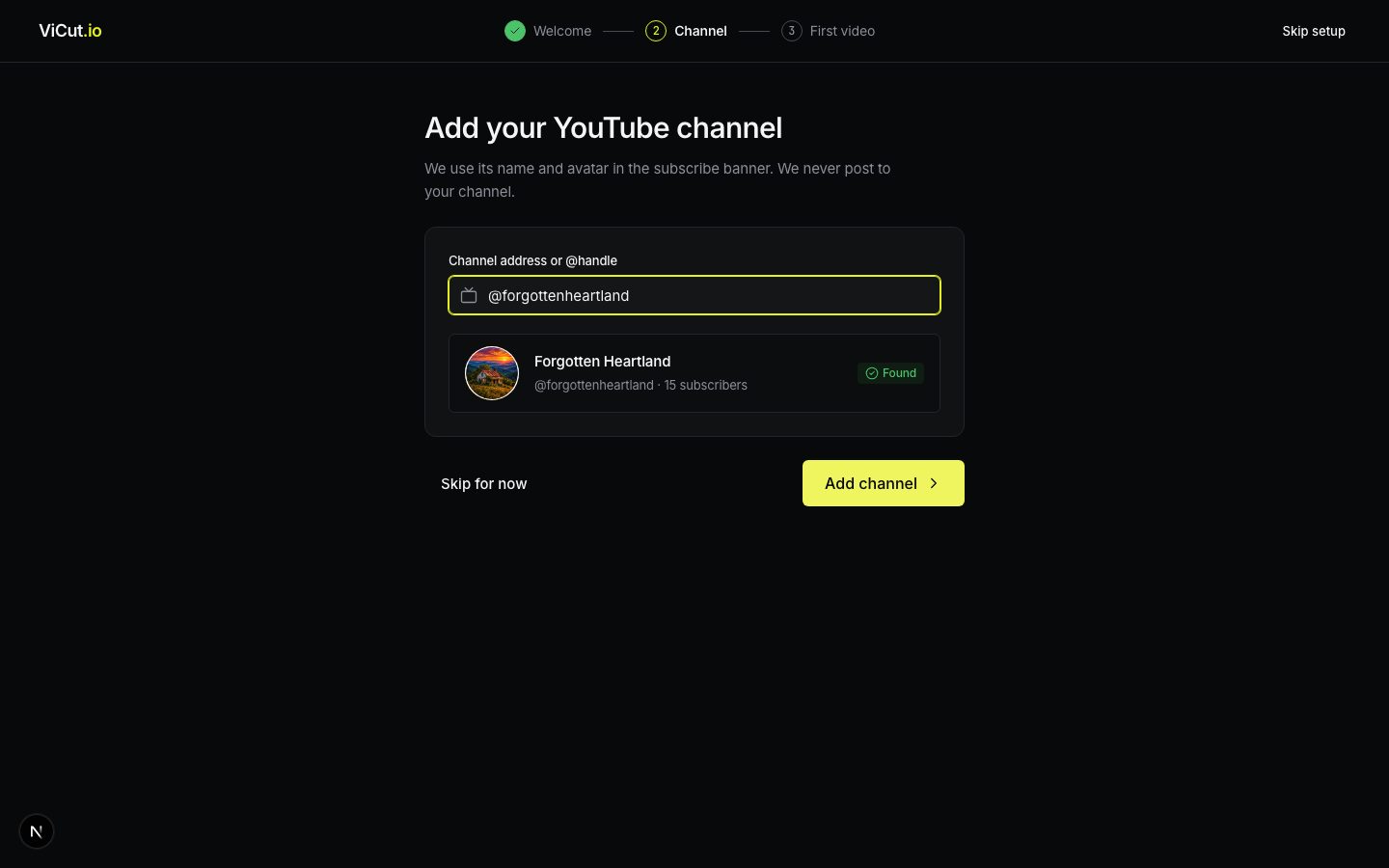
- Channel. Paste your channel link (
youtube.com/@yourchannel) or its@handle. ViCut finds it and shows the avatar. We use the name and avatar only for the subscribe banner and never post anything. No channel yet? Press Skip for now: videos simply leave the banner out. - First video. The same composer as on Home. Drop a voiceover or switch to Idea and press Generate. Or press I’ll do it later.
4. Start the video
On Home:
- Choose Idea to have ViCut research and write the script, or Voiceover to upload your recording.
- Check the chips under the text box: Length, Voice, Style, Subtitles, Subscribe, Music, Thumbnails. The defaults are fine for a first video. See Video settings.
- Look at the line next to the button: it shows the length, the credits and how long preparation will take.
- Press Generate.
5. Wait for the storyboard
You land on the preparation screen with a progress bar and five stages. A 10-minute video usually takes 7–10 minutes to prepare. You can close the tab: the video keeps going, and it shows in In progress in the sidebar. See While the storyboard is prepared.
When it is ready, press Open storyboard.
6. Check the storyboard
Play it with the space bar or the play button and watch the frames change with the narration. Look for scenes marked in amber (need review) or red (no footage). For each one you can keep the frame, pick one of the alternatives, search for another or upload your own. See Check the storyboard.
7. Render and download
Press Render video in the top right, check the cost and press Render. Rendering takes about half the length of the video. When it is done, the video page opens: press Download for the MP4, and SRT for subtitles. See Download and publish.
Write to us — a person reads every message and replies by email.