Help center › Account and billing
Projects and channels
Group videos into projects, add your YouTube channels and choose which one appears on the subscribe banner.
Updated October 19, 2026
Projects
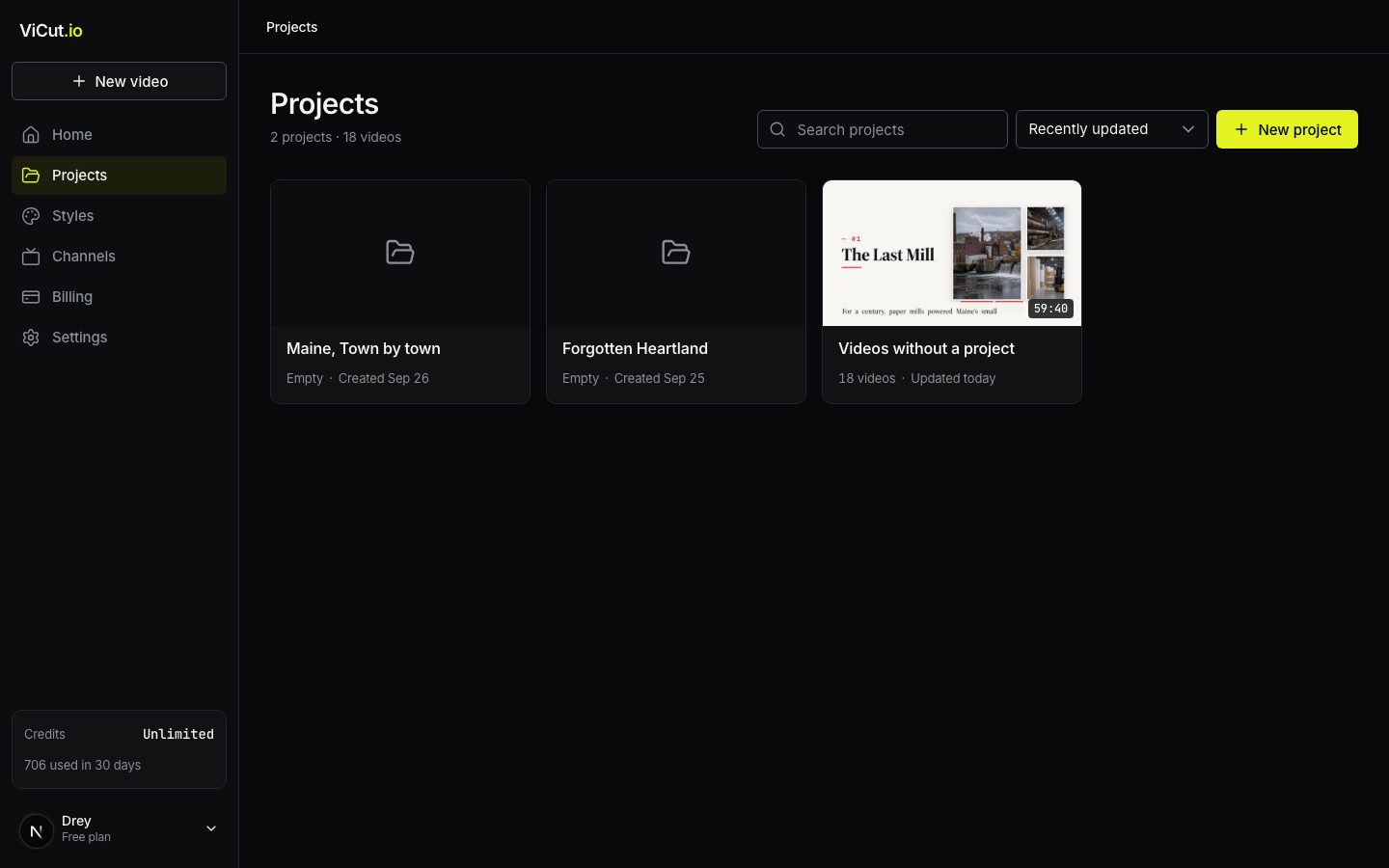
A project holds a series of videos for one channel or topic. Open Projects in the sidebar.
- New project: give it a name (only you see it) and, optionally, a channel. That channel goes on the subscribe banner of the project’s videos.
- Click a project to see its videos. Tabs filter them: Draft, Preparing, Needs review, Rendering, Ready, Failed and Expiring (deleted within 7 days).
- New video inside a project starts a video already placed in it.
- The … menu on a project renames or deletes it. Deleting a project deletes its videos too.
- Videos without a project collects everything started with No project.
To put a video into a project: choose the project in the composer before Generate, or use Move to project on the finished video page.
Note. The Starter plan includes one project. Creator and Studio have unlimited projects.
Channels
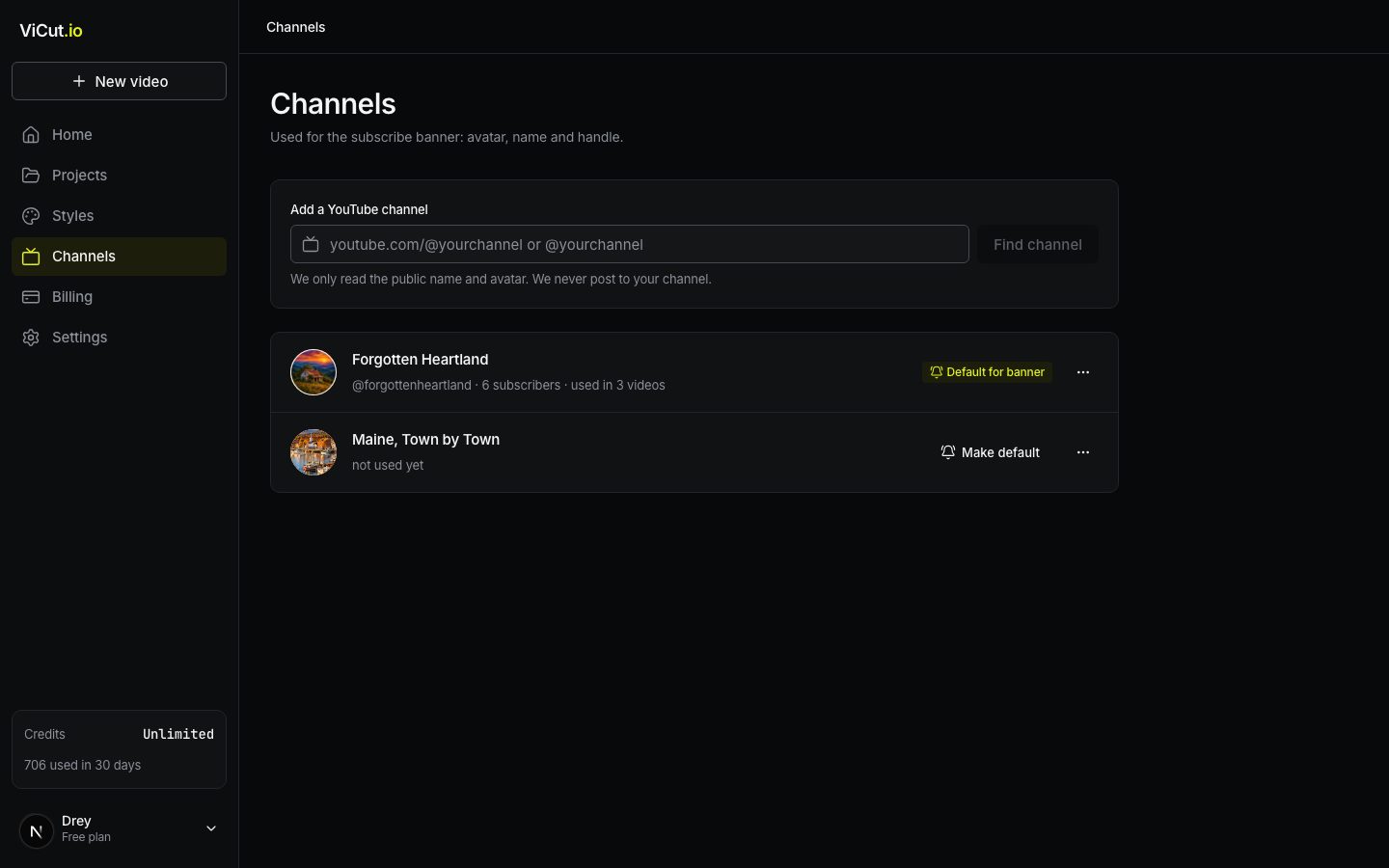
Open Channels in the sidebar.
- Paste your channel link (
youtube.com/@name) or@handleand press Find channel. - Check the name and avatar, then press Add channel.
We only read the public name and avatar. ViCut never posts to your channel and doesn’t need access to your account.
- Default for banner: the channel used when a video has no other channel. Make default switches it.
- The … menu opens the channel on YouTube or removes it. Rendered videos keep the banner they had.
No channel yet? That’s fine: videos without a channel simply leave the subscribe banner out.
Note. Starter includes 1 channel, Creator 3, Studio unlimited. At the limit, remove a channel you no longer use or upgrade.
Didn’t find the answer?
Contact usWrite to us — a person reads every message and replies by email.