Render the video
What happens when you press Render, what it costs, how long it takes and what to do if it waits in a queue or stops.
Start the render
- On the storyboard, press Render video in the top right. The button shows the cost.
- Check the summary: the length, a Premium theme if you use one, subtitles, thumbnails and the total.
- Press Render · N credits.
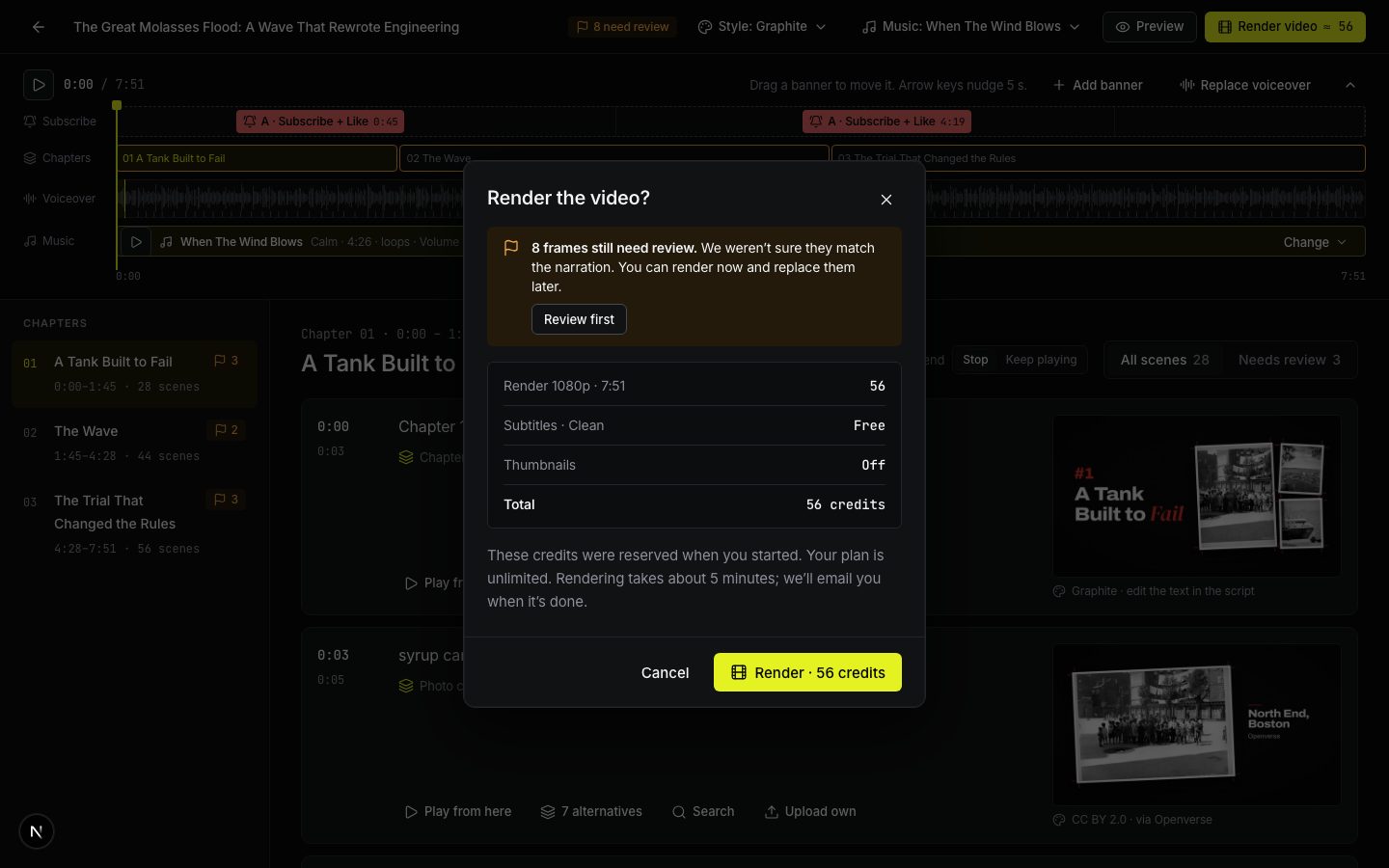
If some frames still need review, the summary says how many. Review first takes you back to them. You can also render anyway and fix them later, but a re-render costs credits again.
The button is disabled while any scene has no footage, and while a new voiceover is syncing.
Cost
The render credits were already reserved when you pressed Generate, so starting the render doesn’t take anything new from your balance. They are charged when the render finishes. If the render fails, they are returned.
How long it takes
About half the length of the video: roughly 5 minutes for a 10-minute video. You can close the tab. The stages are:
- Assembling scenes: photos, clips, maps and title cards in your style.
- Burning in subtitles, if they are on.
- Encoding 1080p: H.264, 30 frames per second.
- Mixing voice: your voiceover levelled for YouTube, with music under it.
- Saving and making SRT.
The latest encoded frame is shown as it goes.
Waiting for a render slot
Each plan renders a set number of videos at once: 1 on Starter, 2 on Creator, 4 on Studio. If all your slots are busy, the screen says Waiting for a render slot and shows what is rendering now. Yours starts by itself when a slot frees up. Get more slots shows the plans.
If rendering stops
You see Rendering stopped with the reason. Your storyboard is unchanged and all credits for this render are returned. Press Try again, or Back to storyboard to change something first.
When it’s done
The video page opens with the player, downloads, thumbnails and YouTube details. See Download and publish.
Write to us — a person reads every message and replies by email.