Start from your own voiceover
Upload a narration you recorded. ViCut times every word, splits it into scenes and finds footage for each one.
How to start
- On Home, choose the Voiceover tab.
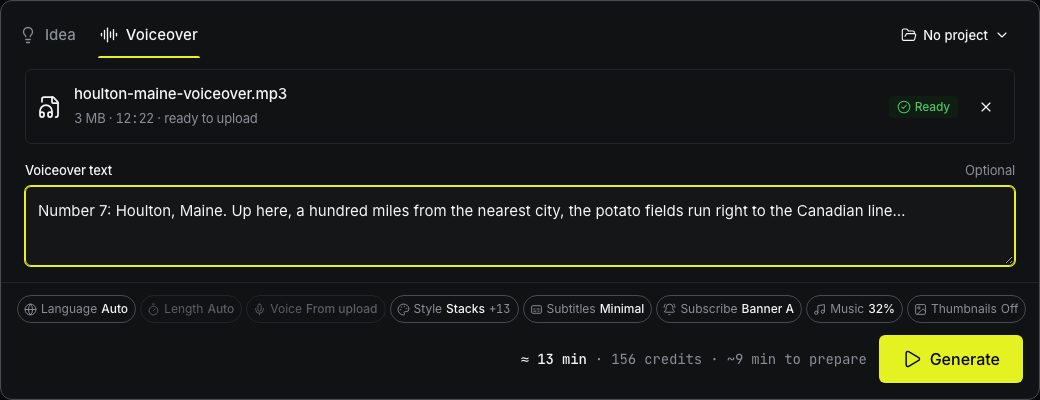
- Drop the audio file on Drop your voiceover, or click it to browse.
- Optional, but recommended: paste the exact words you recorded into Voiceover text.
- Check the chips and press Generate. The file uploads and preparation starts.
File requirements
| Requirement | Allowed |
|---|---|
| Formats | MP3, WAV, M4A, AAC, FLAC, OGG |
| Length | 3 to 35 minutes |
| Size | up to 100 MB |
| Language | English, Spanish or German |
WAV files get large fast. If yours is over 100 MB, save it as MP3: a 35-minute MP3 at 128 kbps is about 34 MB. Voiceovers count toward your plan’s space for uploads (2 GB on Starter, 10 GB on Creator, 30 GB on Studio).
The file is checked in the browser before upload. If the length or format is wrong, you see why right away and nothing is spent.
Language
The Language chip shows Auto: ViCut hears which language you speak. You can also pick English, Español or Deutsch yourself. Subtitles, chapter titles, the subscribe banner and the YouTube details then use that language.
Why paste the text
Without the text, ViCut transcribes your recording. With the exact words, names of places and people are spelled right, subtitles match what you said, and scenes split in the right places. Paste the script you read from, as close to the recording as you can.
Recording tips
- Chapters. If your video is a countdown, say each heading as its own sentence: *“Number 5: Houlton, Maine.”* ViCut turns each heading into a chapter with a title card. Other videos are split into chapters by topic.
- Pauses. Pauses longer than 2 seconds are marked on the storyboard timeline. Trim long silences before uploading.
- Names. Say place names clearly. Footage is searched by place, so a misheard town means wrong photos.
- One clean take is better than several joined with music or effects: upload the voice only. ViCut adds background music itself if you want it.
Length and cost
The length comes from the file, so the Length chip shows Auto and the Voice chip shows From upload. The cost line shows the exact credits for your recording, rounded up to whole minutes.
Write to us — a person reads every message and replies by email.